JigsawDesigner

JigsawDesigner 1.6.0 · iPhone, iPad, and Mac

Turn a closed outline into editable puzzle cutlines

Draw or import a vector boundary, choose a slot profile, generate the internal pattern, then refine the SVG before it leaves your project.

BoundarySVG
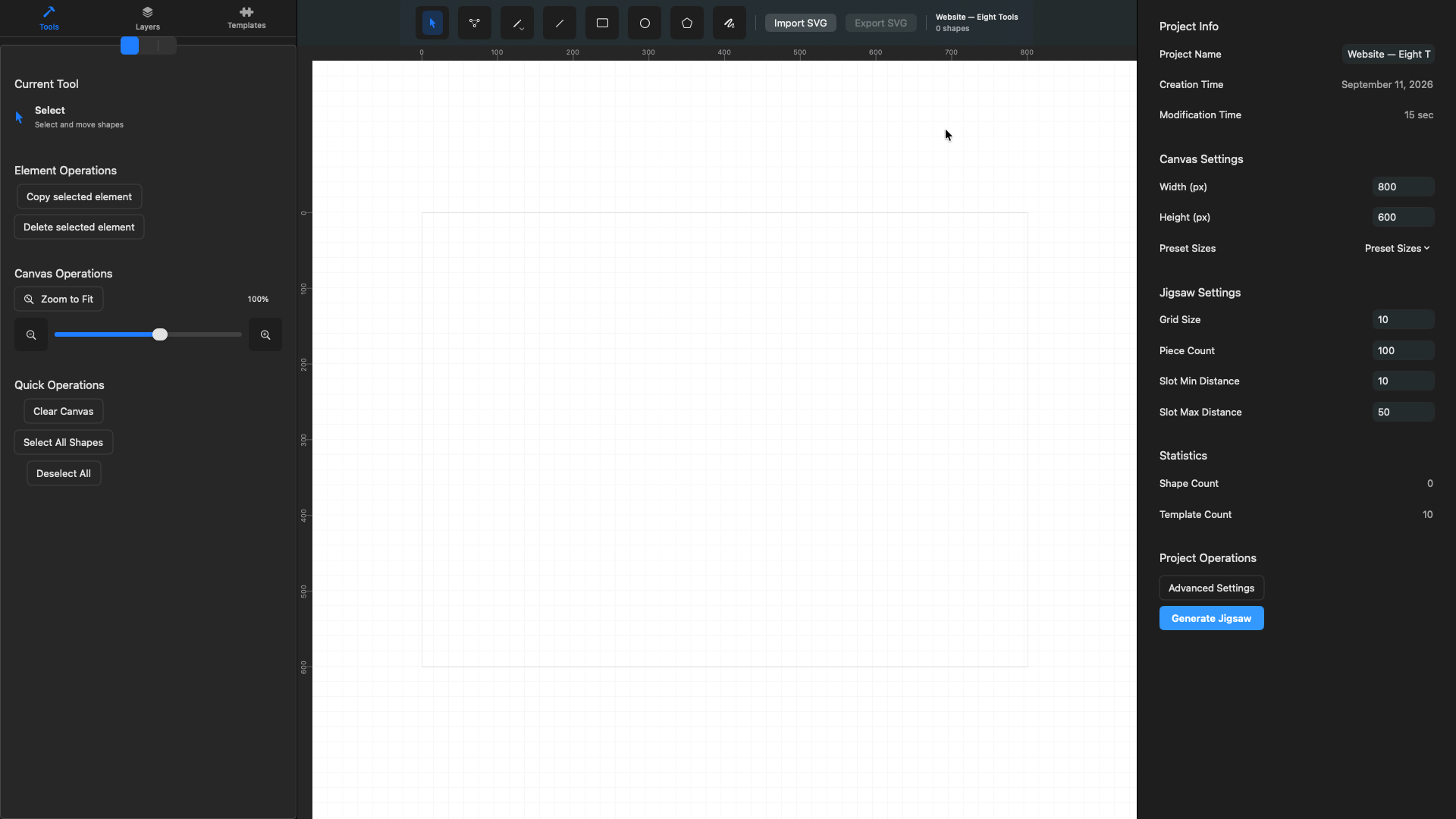
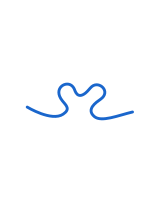
A closed irregular boundary with a slot template and generation settings ready in JigsawDesigner
Generated SVGSVG
Generated puzzle cutlines inside the irregular boundary, selected as an editable group

Cutline anatomy

A cutline file is geometry, not a machine preset

The outer boundary defines the puzzle silhouette. Internal cutlines divide it into pieces, while a slot profile shapes the connections along those lines. JigsawDesigner keeps this geometry as editable SVG paths and groups. Material, kerf, power, speed, and other production settings still belong in the downstream software used with your equipment.

Inspect the exported file at its intended scale before using material.

A cutline file is geometry, not a machine presetOuter boundaryInternal cutlinesSlot profileEditable SVG

The real workflow

From source geometry to an SVG you can keep editing

Generation is one step inside the project—not the end of the design process.

01

Import or draw the source geometry

Bring in an SVG or draw a closed contour with vector tools. Check its scale, groups, and visible geometry on the canvas before generation.

A detailed imported SVG selected in JigsawDesigner with its Layers hierarchy and Shape Info visible
Imported SVG shown with its actual document structure.Product screenshot · JigsawDesigner 1.6.0
02

Generate inside the chosen boundary

Choose a built-in or custom slot profile, set grid and distance values, and generate. Review the result instead of treating the first output as final.

Generated puzzle cutlines selected as a group in JigsawDesigner
The generator returns editable vector geometry.Product screenshot · JigsawDesigner 1.6.0
03

Refine the paths, then export SVG

Use selection handles, Layers, Point Edit, grouping, and Inspector values to make the document ready for the next tool in your workflow.

Point Edit anchors shown around a generated puzzle boundary in JigsawDesigner
Anchor-level edits remain available after generation.Product screenshot · JigsawDesigner 1.6.0

Product-owned examples

Inputs, in-app results, and the next edit

Each JigsawDesigner team example records the objective, source geometry, in-app result, and the next vector edit.

Open the full showcase
An irregular closed boundary with a custom slot template selected and generation settings visible in JigsawDesigner
Input
Generated puzzle cutlines inside the irregular boundary, selected as an editable group in JigsawDesigner
Generated result

Irregular boundary to editable cutlines

Objective
Fill a closed, hand-shaped outline with a puzzle pattern while preserving its outer contour.
Template
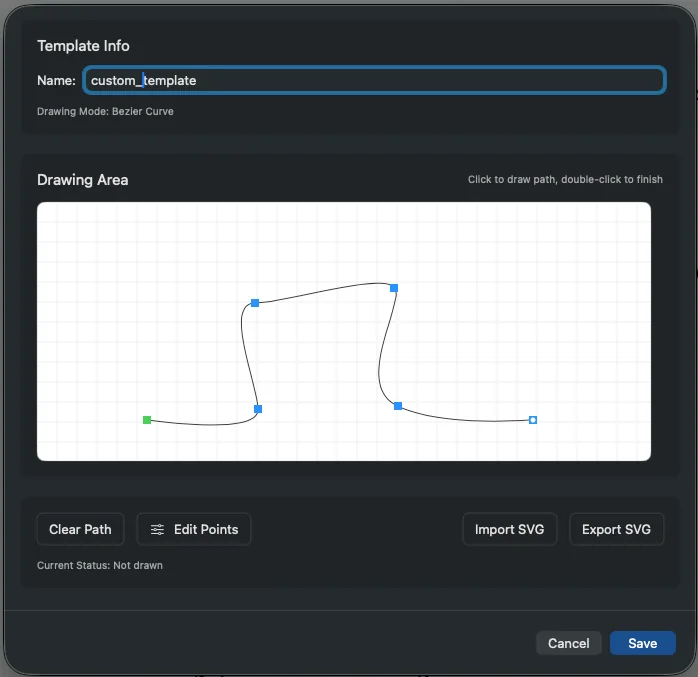
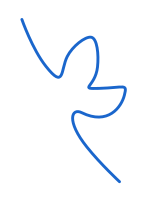
A custom concave slot profile selected from the Templates panel
Next edit
Select the generated group, inspect its bounds, and switch to point editing for local boundary adjustments.
A detailed dragon-shaped vector boundary with multiple internal animal outlines before puzzle generation
Input
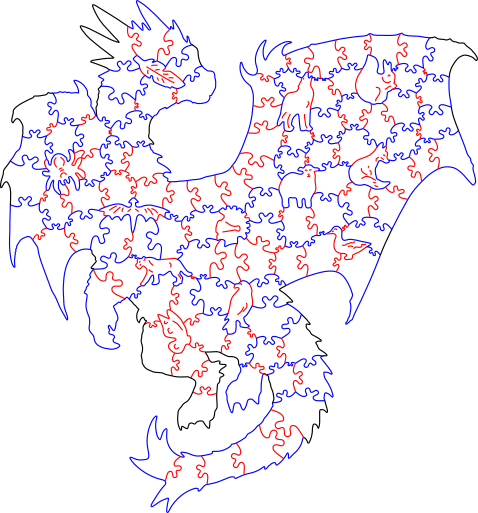
Puzzle cutlines generated across a detailed dragon silhouette in JigsawDesigner
Generated result

Detailed silhouette with internal openings

Objective
Generate a pattern across a complex dragon outline while retaining the smaller shapes inside it.
Template
A custom slot profile shown as selected in the Templates panel
Next edit
Inspect narrow areas and internal openings, then adjust individual paths where the downstream workflow requires more clearance.
A complex imported SVG selected in JigsawDesigner with its layer groups and dimensions visible
Opened SVG
The JigsawDesigner project library containing several product-owned SVG and puzzle examples
Project library

Imported SVG to an organized project

Objective
Open a layered SVG, verify that its visible composition arrived, and retain it alongside other editable projects.
Template
Not used—this example documents SVG import and project organization
Next edit
Inspect the imported groups and scale before choosing or drawing a closed boundary for generation.

One workflow, three Apple devices

Use the screen that fits the stage of the project

The same core editor is available on Mac, iPad, and iPhone. The screenshots below come from the current 1.6 product build.

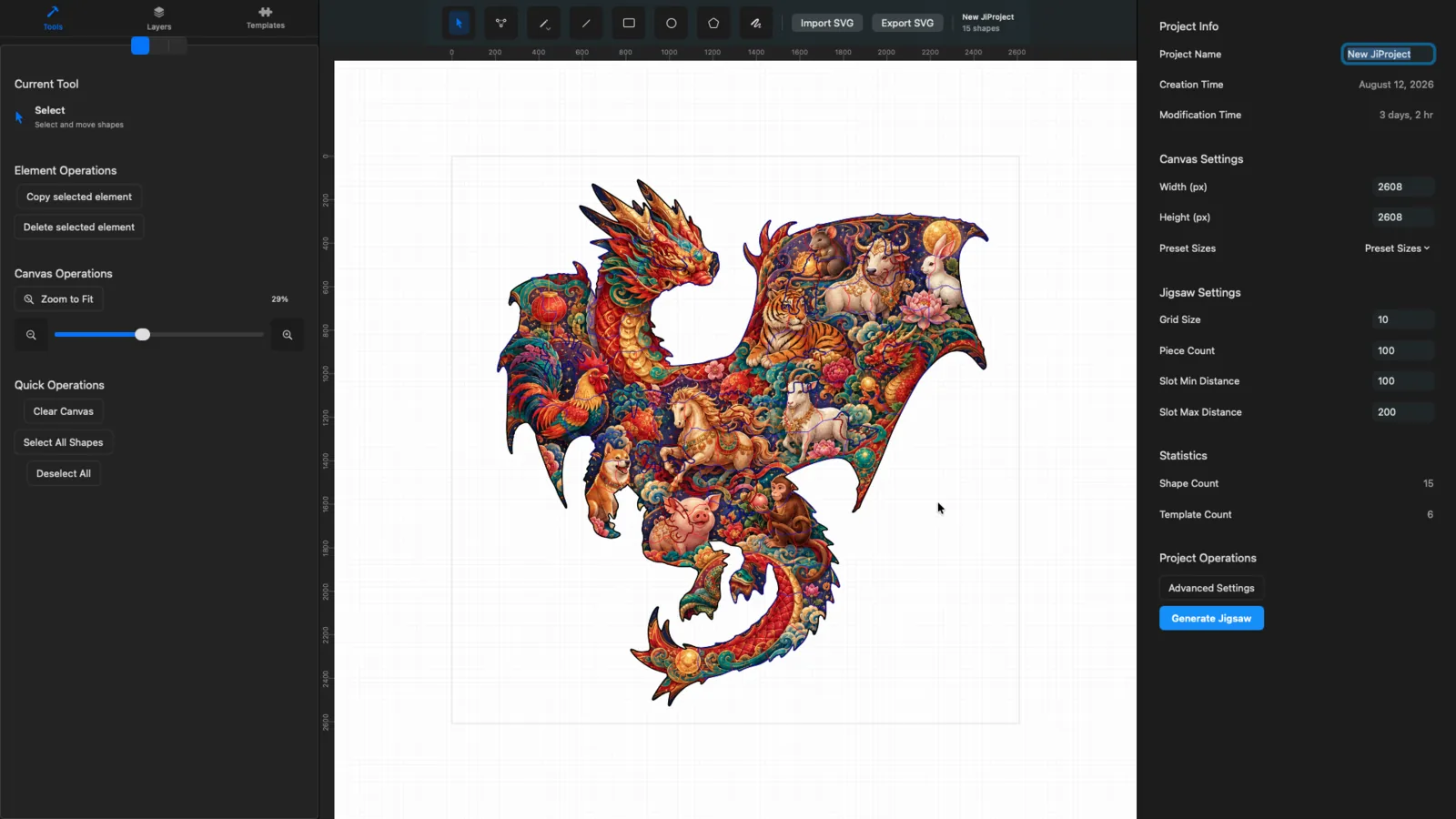
JigsawDesigner 1.6 SVG workspace on Mac with a dragon project visible
Mac workspaceProduct screenshot · JigsawDesigner 1.6.0

Mac

Full SVG workspace

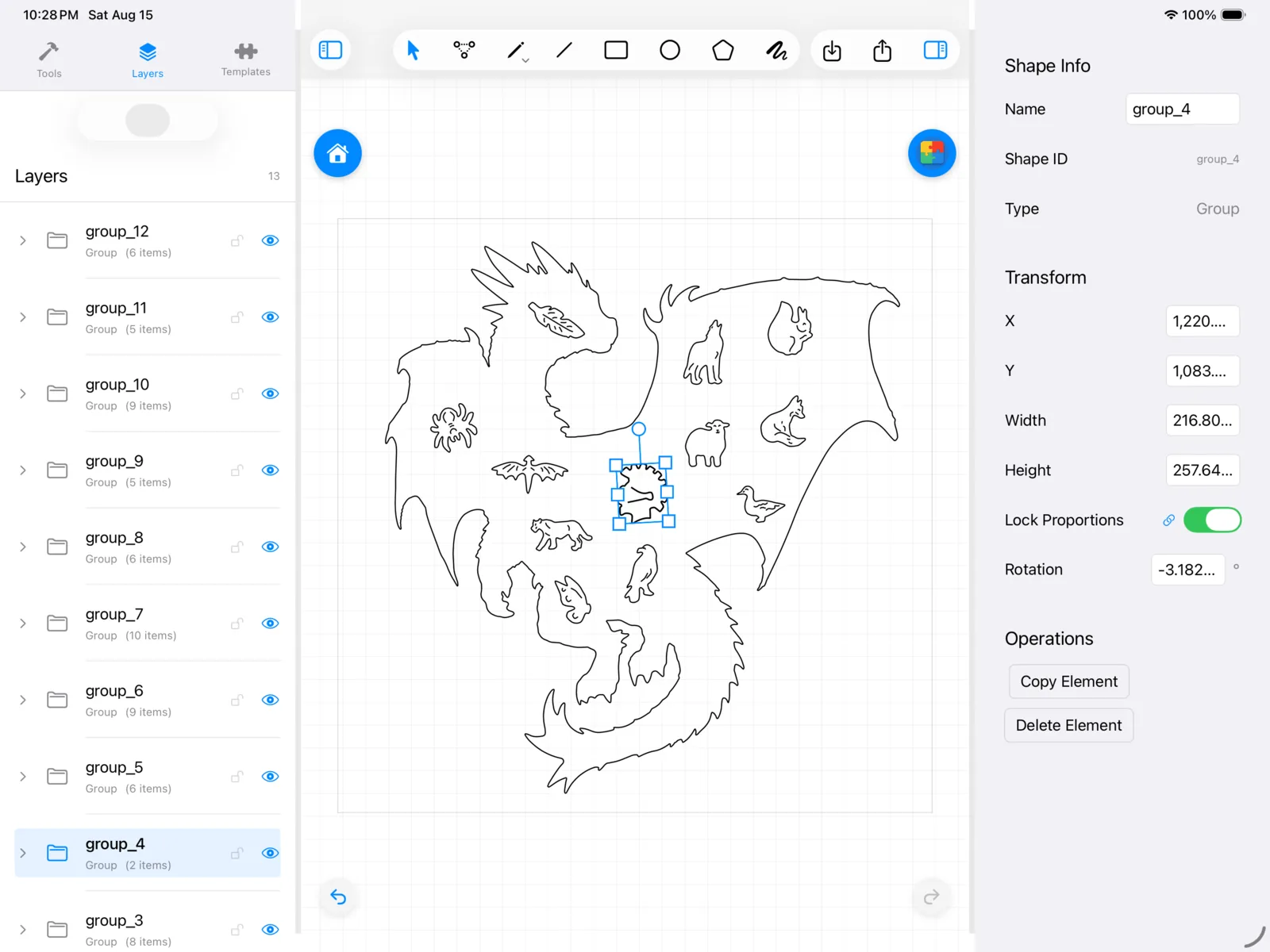
JigsawDesigner 1.6 vector editing interface on iPad
iPad editorProduct screenshot · JigsawDesigner 1.6.0

iPad

Touch-based vector editing

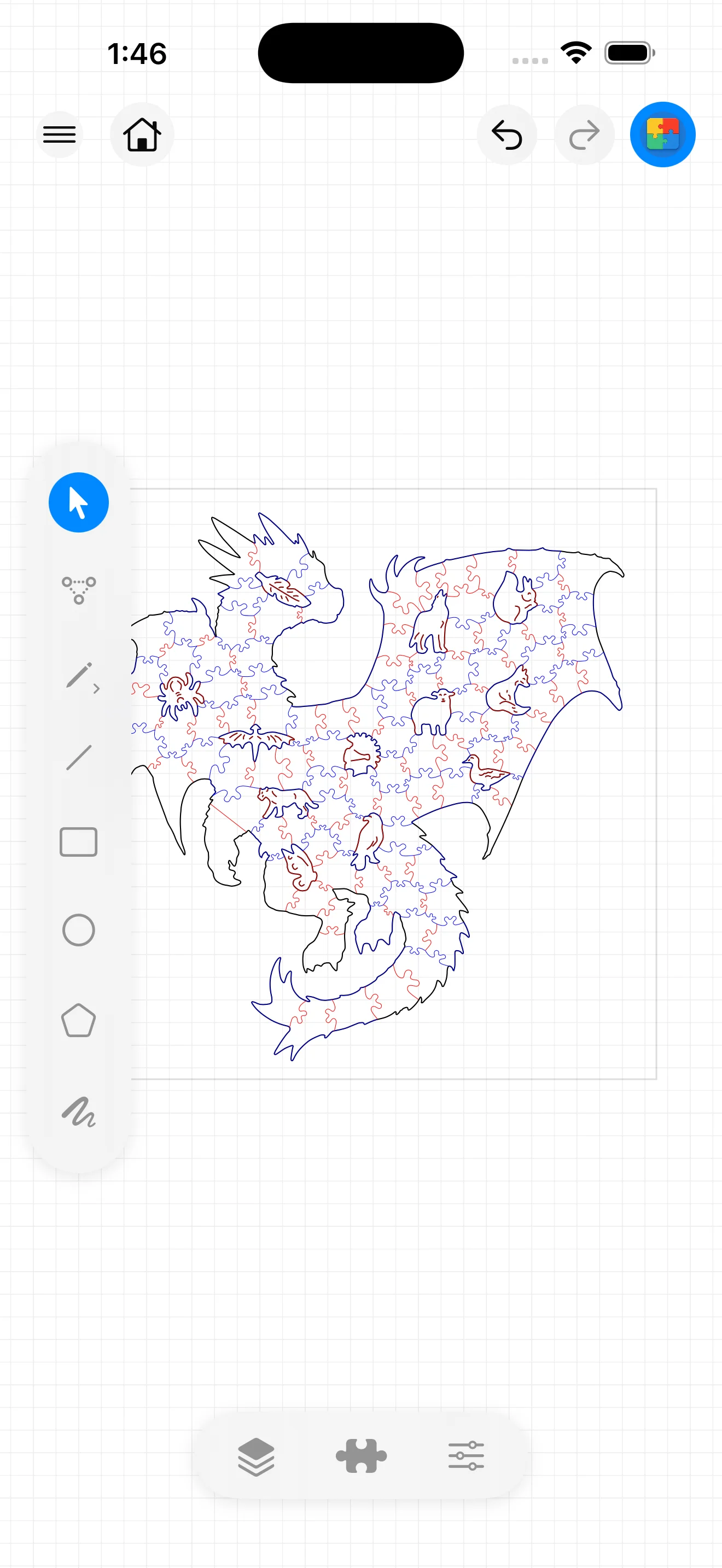
JigsawDesigner 1.6 vector selection interface on iPhone
iPhone editorProduct screenshot · JigsawDesigner 1.6.0

iPhone

Compact selection workflow

SVG import

Open vector artwork and inspect its visible structure.

Path editing

Edit anchors, groups, transforms, and drawing paths.

Custom slot profiles

Draw or import the connection shape used by the generator.

Project library

Keep editable studies organized for later revisions.

After export

Treat fabrication as a separate validation stage

JigsawDesigner hands off SVG geometry. Your cutting software and equipment remain responsible for operations, material settings, and safety.

  1. 01

    Export SVG

    Keep the editable project and export the geometry needed downstream.

  2. 02

    Inspect the handoff

    Confirm units, scale, duplicate paths, stroke interpretation, and intended operations.

  3. 03

    Run a material test

    Use a small test and the equipment vendor’s guidance before committing a full sheet.

  4. 04

    Make and document

    Record the final material and machine settings outside JigsawDesigner for repeatability.

Read the complete making guide

JigsawDesigner does not replace cutting software, equipment documentation, or safe operating procedures.

Earlier product walkthrough. Use the 1.6.0 screenshots above as the reference for the current interface.

Start with 5 free generations

Premium adds unlimited generation and SVG export. Apple handles monthly and yearly subscriptions.

Free

Try the core generation workflow.

  • 5 puzzle generations

Premium

Continue generating and export SVG.

  • Unlimited puzzle generation
  • SVG export
Compare Free and Premium

The App Store displays the current price for your region.

Questions before you start

Can I use my own outline?

Yes. Draw a closed vector boundary or import suitable SVG geometry, then choose the boundary used for generation.

Can I edit the puzzle after generation?

Yes. The generated cutlines return to the document as editable SVG geometry.

Which format can I export?

JigsawDesigner currently exports SVG. SVG export is included with Premium.

Does the app choose laser settings?

No. Validate units, scale, material, kerf, operations, power, speed, and safety in the downstream workflow for your equipment.

Learn by stage

Understand the geometry, finish one project, then go deeper

Choose one of three paths: understand cutlines, complete a project, or refine and export SVG.

Open Learn