JigsawDesigner Help
Getting Started with JigsawDesigner
Follow this short path from a blank project to an editable puzzle document. The interface adapts to iPhone, iPad, and Mac, while the same project model keeps SVG geometry, templates, and settings together.
1. Create a project
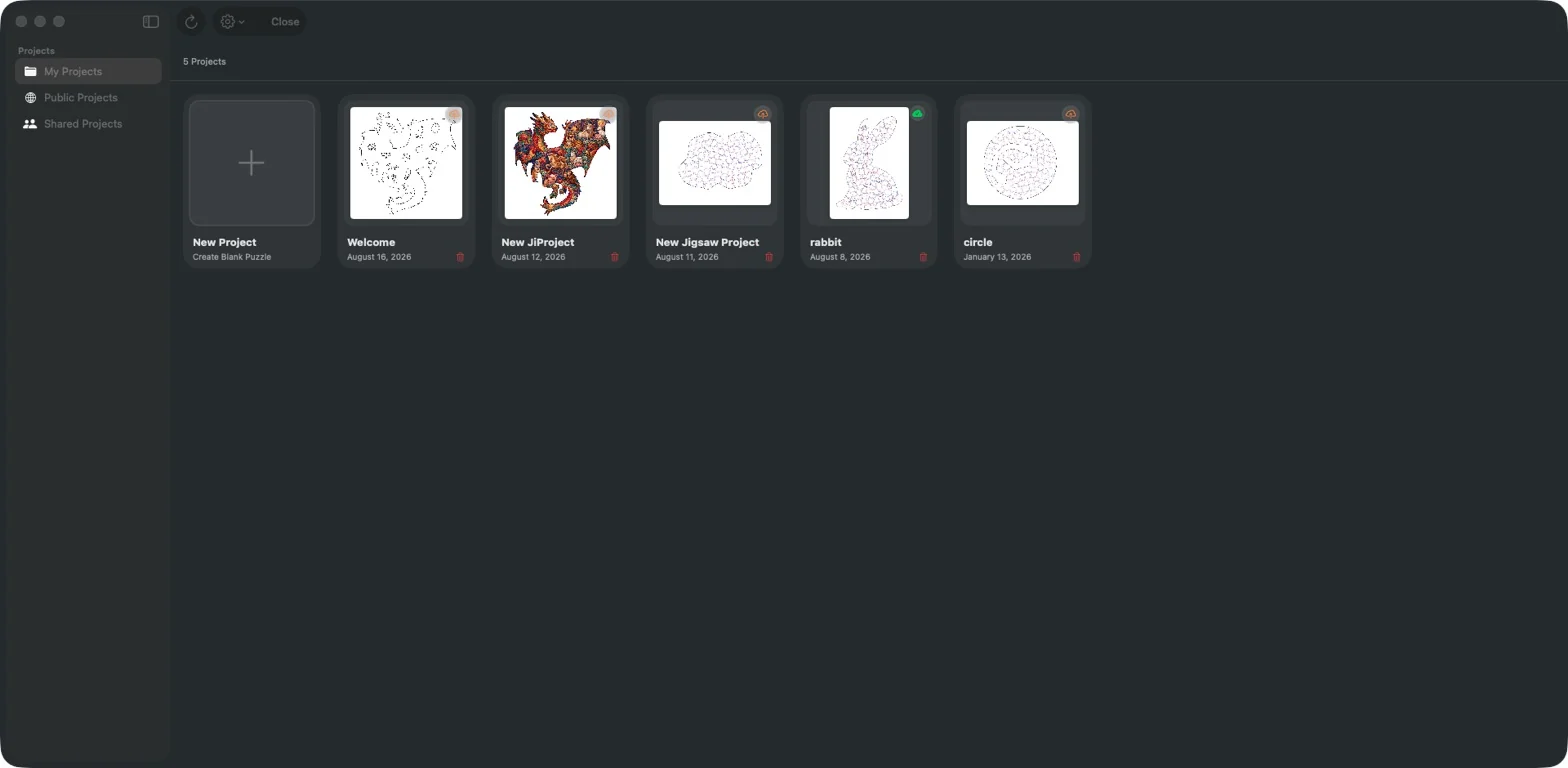
Open the Project Library and choose New Project. A new project starts with an 800 × 600 canvas, a target of 100 pieces, and the built-in slot templates. You can change these settings before generation.
2. Draw or import geometry
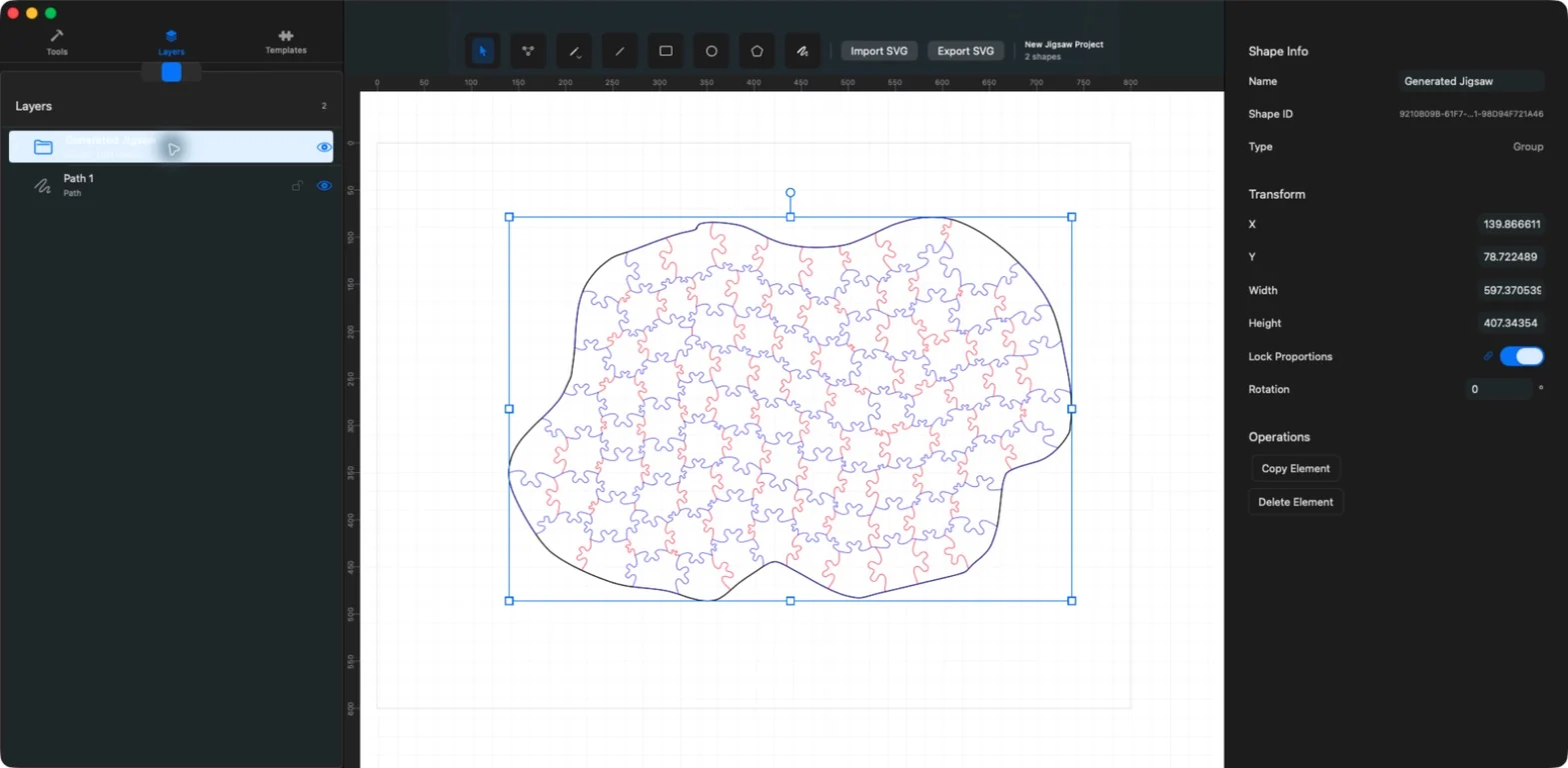
Choose Select, Point Edit, Pencil, Line, Rectangle, Circle, Polygon, or Bezier from the editor. To reuse an existing boundary, import an SVG and inspect it on the canvas and in Layers.

3. Generate, save, and export
Select a suitable boundary and slot template, configure generation parameters, and run Generate Jigsaw. Inspect the returned SVG group, save the .jigsawproject source document, and export SVG when ready.
The current app exports SVG only. Free users receive 5 generations; Premium unlocks unlimited generation and SVG export.