JigsawDesigner

Product-owned examples

Three projects, from source geometry to editable result

These JigsawDesigner team examples were captured in JigsawDesigner 1.6.0 on Mac. Each one records the input, the in-app result, and the next vector edit.

About these examples

  • The screenshots are from JigsawDesigner 1.6.0 on Mac.
  • Each example documents an actual editor state or project-library state.
  • Physical production settings remain part of the downstream workflow.

Three working examples

The projects are deliberately different: a freeform boundary, a detailed silhouette with internal openings, and an imported SVG handoff. Together they show where generation ends and vector work continues.

01

Irregular boundary to editable cutlines

Objective
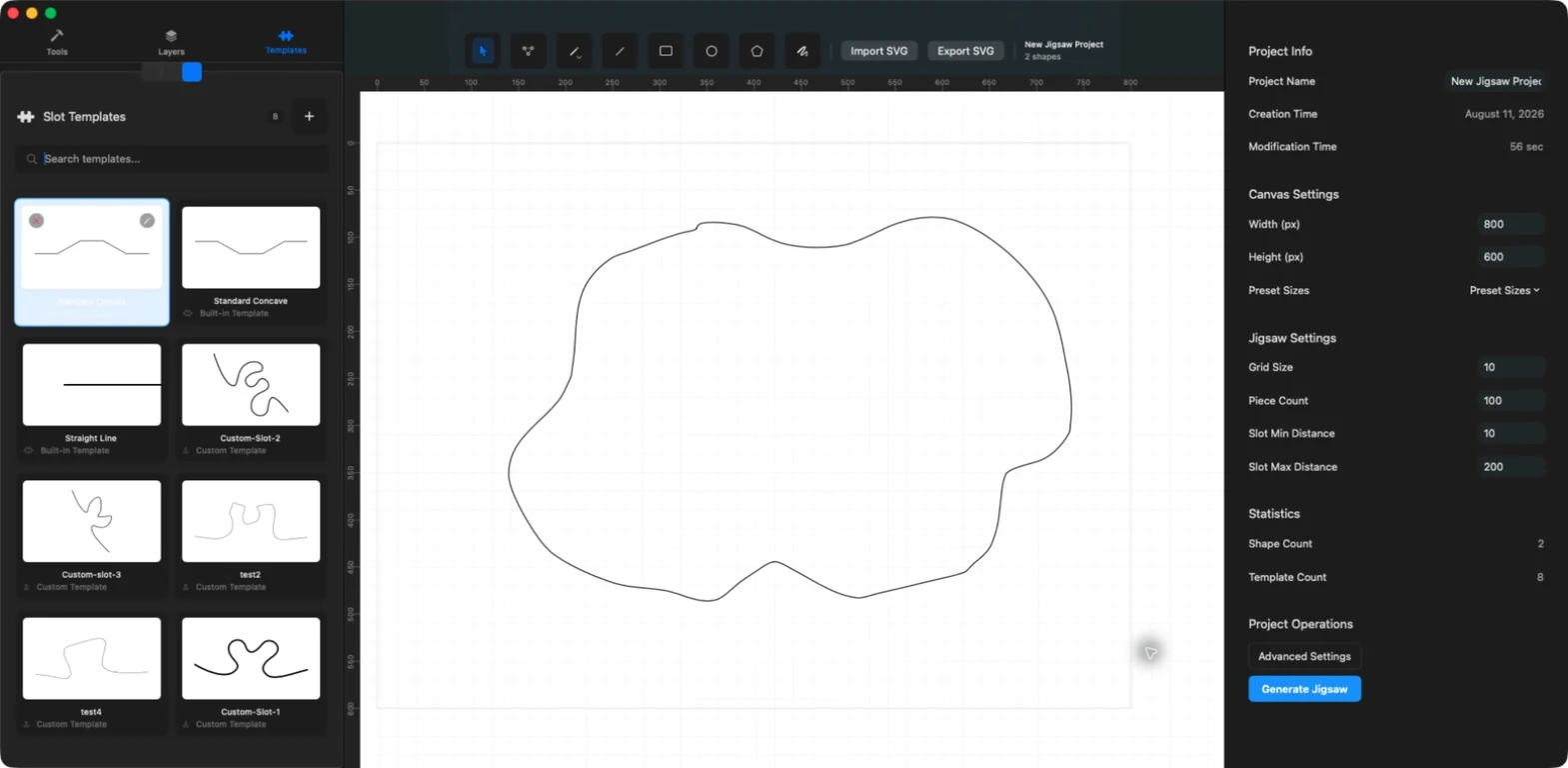
Fill a closed, hand-shaped outline with a puzzle pattern while preserving its outer contour.
Captured on
Mac
Template
A custom concave slot profile selected from the Templates panel
Next edit
Select the generated group, inspect its bounds, and switch to point editing for local boundary adjustments.
Open the related guide
InputAn irregular closed boundary with a custom slot template selected and generation settings visible in JigsawDesigner

The boundary, selected profile, and generation controls before running the generator.

Source: Product screenshot · JigsawDesigner 1.6.0 for Mac

Generated resultGenerated puzzle cutlines inside the irregular boundary, selected as an editable group in JigsawDesigner
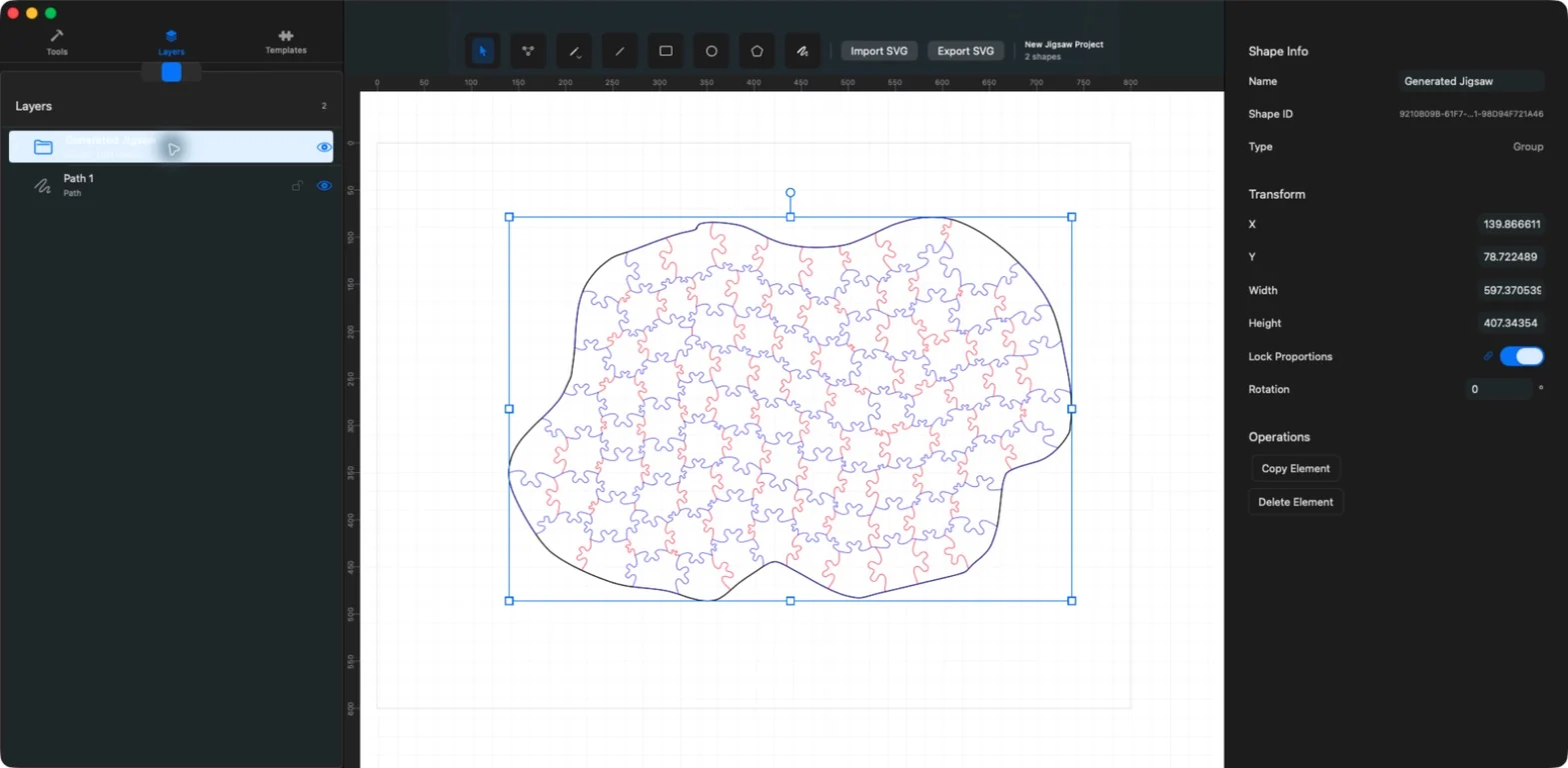
The generated cutlines return to the document as a selectable SVG group.

Source: Product screenshot · JigsawDesigner 1.6.0 for Mac

What happened

  1. 01Prepare one closed outer boundary and choose the slot profile.
  2. 02Set the target density and generate the pattern.
  3. 03Keep the returned SVG group editable in Layers.
02

Detailed silhouette with internal openings

Objective
Generate a pattern across a complex dragon outline while retaining the smaller shapes inside it.
Captured on
Mac
Template
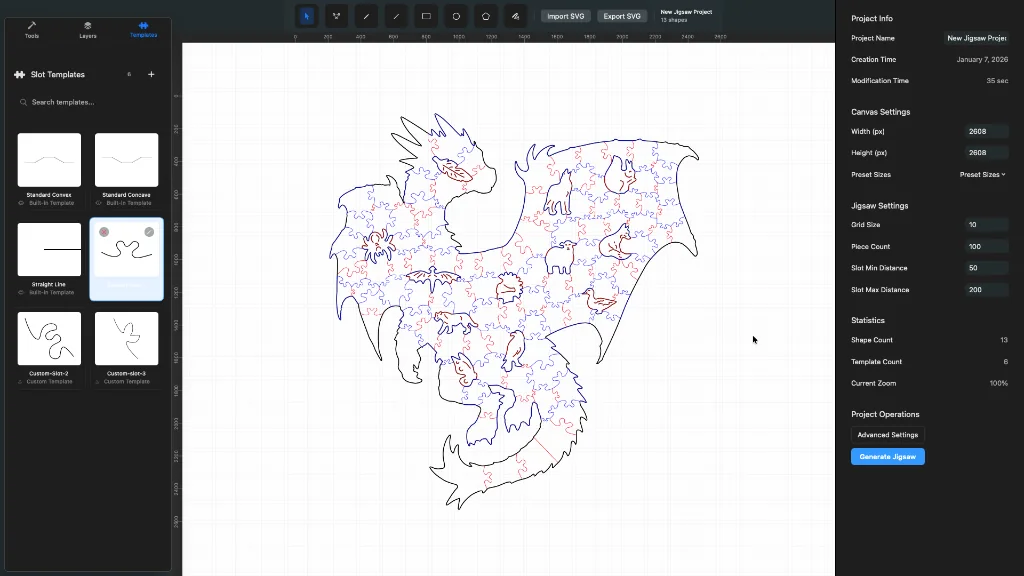
A custom slot profile shown as selected in the Templates panel
Next edit
Inspect narrow areas and internal openings, then adjust individual paths where the downstream workflow requires more clearance.
Open the related guide
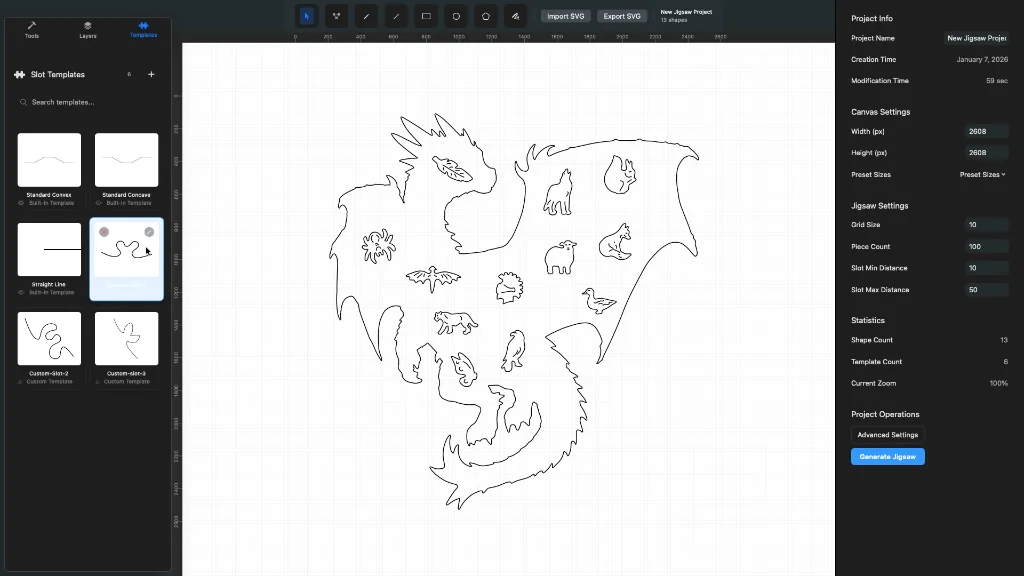
InputA detailed dragon-shaped vector boundary with multiple internal animal outlines before puzzle generation

The source geometry includes a complex outer silhouette and several internal openings.

Source: Product screenshot · JigsawDesigner 1.6.0 for Mac

Generated resultPuzzle cutlines generated across a detailed dragon silhouette in JigsawDesigner

The in-app result is ready for close inspection and vector refinement.

Source: Product screenshot · JigsawDesigner 1.6.0 for Mac

What happened

  1. 01Review the outer silhouette and its internal vector shapes.
  2. 02Choose the profile and tune the distance range.
  3. 03Generate, zoom in, and inspect intersections rather than assuming the first result is final.

03

Imported SVG to an organized project

Objective
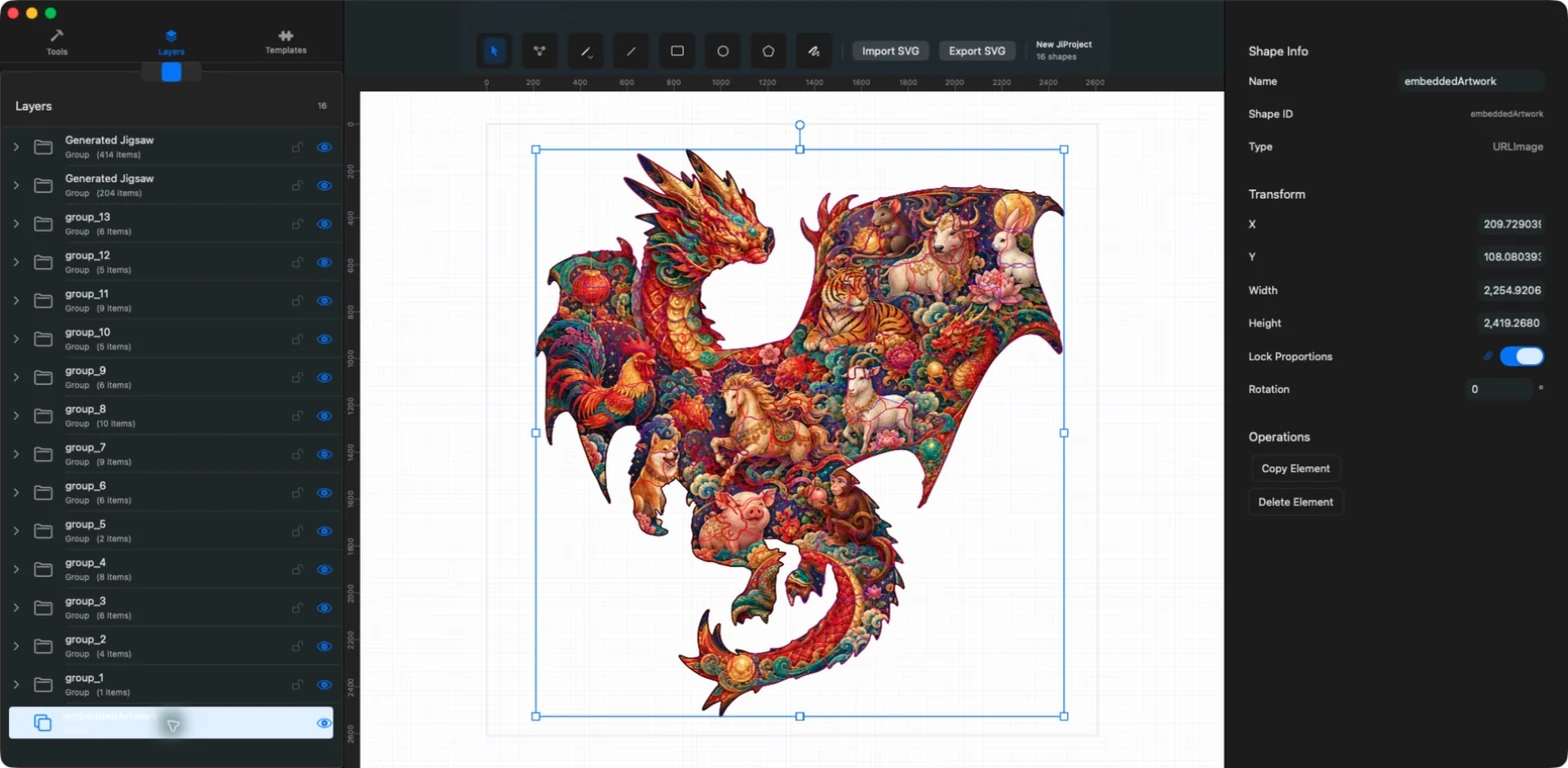
Open a layered SVG, verify that its visible composition arrived, and retain it alongside other editable projects.
Captured on
Mac
Template
Not used—this example documents SVG import and project organization
Next edit
Inspect the imported groups and scale before choosing or drawing a closed boundary for generation.
Open the related guide
Opened SVGA complex imported SVG selected in JigsawDesigner with its layer groups and dimensions visible

A real import check inside the editor; the artwork is evidence of app rendering, not a physical product.

Source: Product screenshot · JigsawDesigner 1.6.0 for Mac

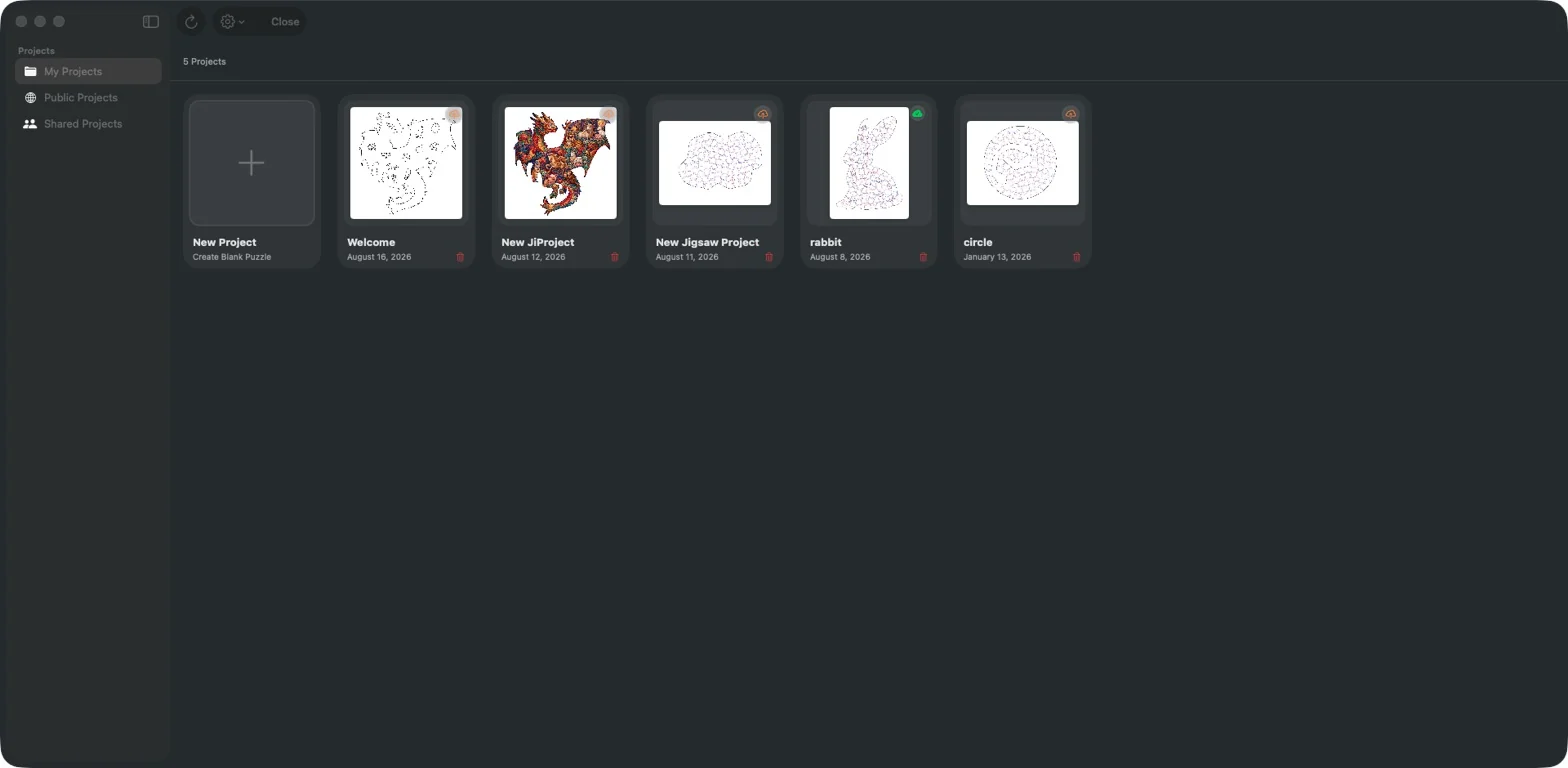
Project libraryThe JigsawDesigner project library containing several product-owned SVG and puzzle examples

The current project library keeps imported artwork and generated studies together.

Source: Product screenshot · JigsawDesigner 1.6.0 for Mac

What happened

  1. 01Import the SVG into a project.
  2. 02Compare the visible artwork and inspect its groups in Layers.
  3. 03Save the project so the source artwork and generated studies remain easy to reopen.

Start with your own boundary

Create a project on iPhone, iPad, or Mac, then inspect the generated geometry before exporting SVG.

View on the App Store