
Step-by-step vector workflow
How to Make a Jigsaw Puzzle SVG for a Laser-Cutting Workflow
This guide covers the vector-design portion of a laser-cut puzzle project. JigsawDesigner creates and exports SVG geometry; your cutting software and equipment documentation remain the authority for production settings and safety.

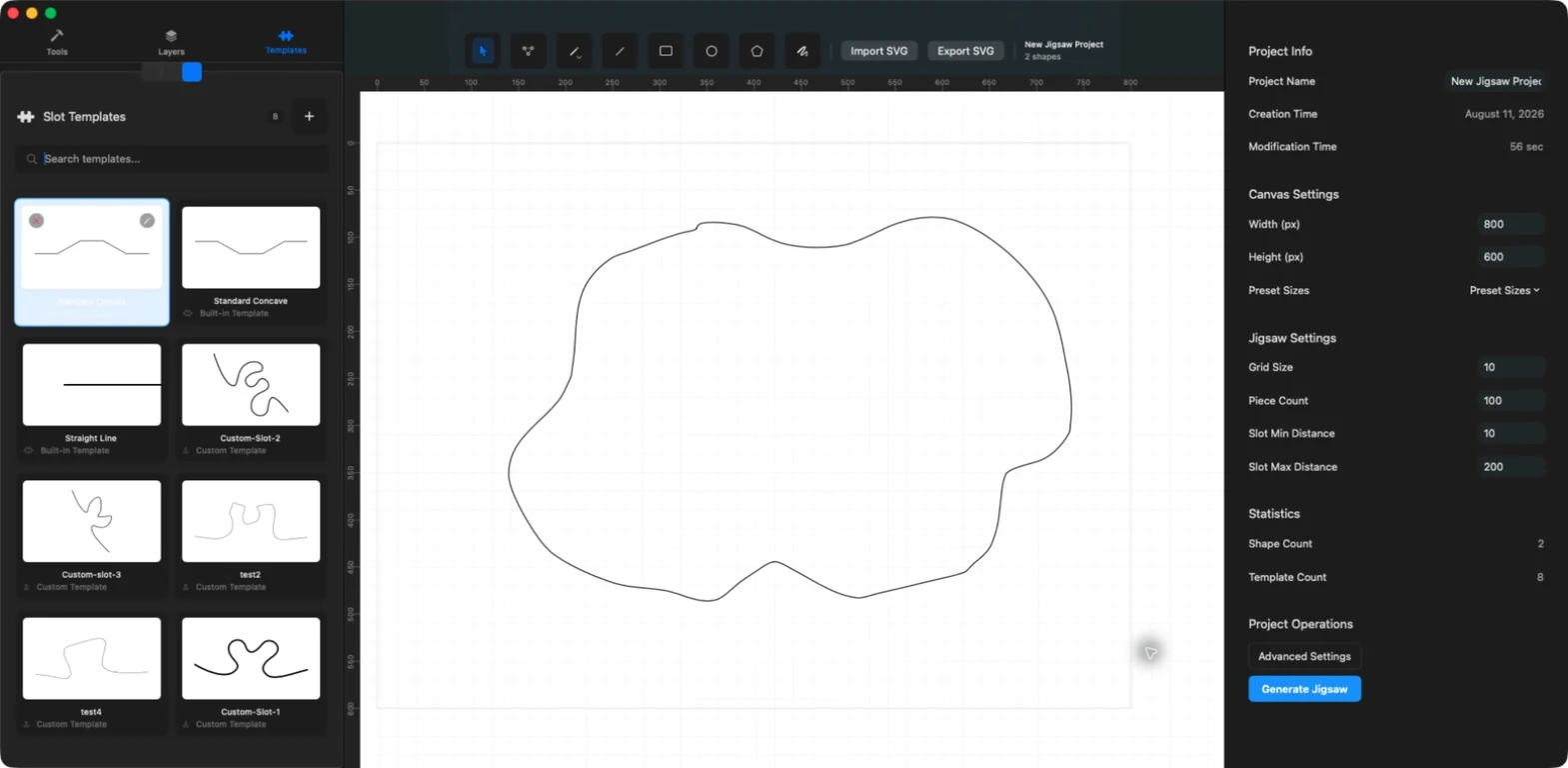
What you can do
- Create or import the puzzle boundary
- Choose and test a slot template
- Generate and inspect cutline geometry
- Export SVG and validate downstream
1. Prepare the outer boundary
Create a new project and draw a closed outer contour, or import a suitable SVG boundary. Set the canvas size and check that the intended geometry is visible and selectable.
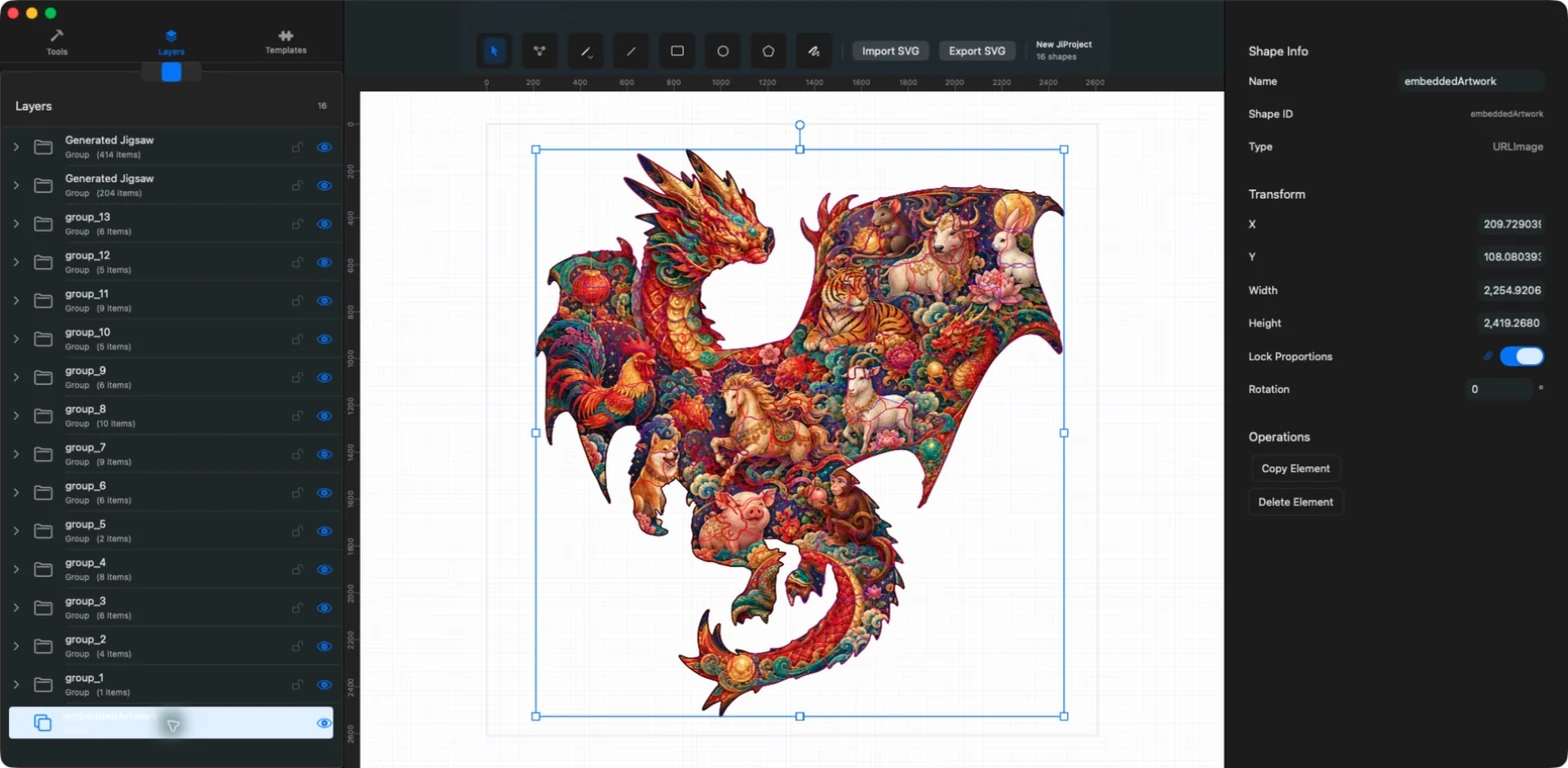
2. Choose a template and generate
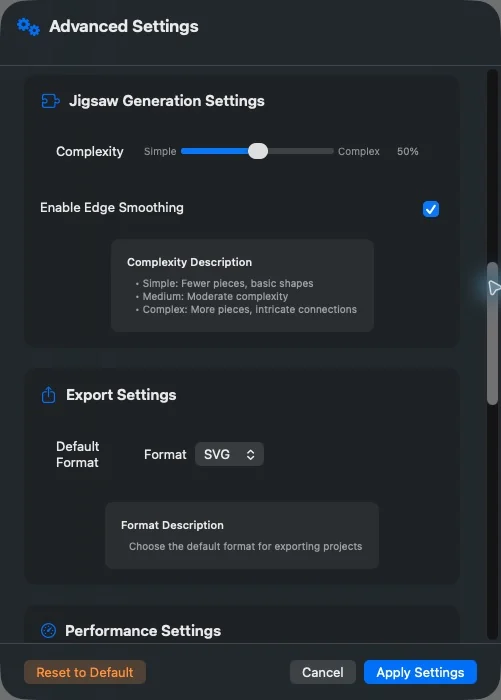
Select Standard Convex, Standard Concave, Straight Line, or a custom slot template. Set grid size, target piece count, and slot-distance values, then run Generate Jigsaw.
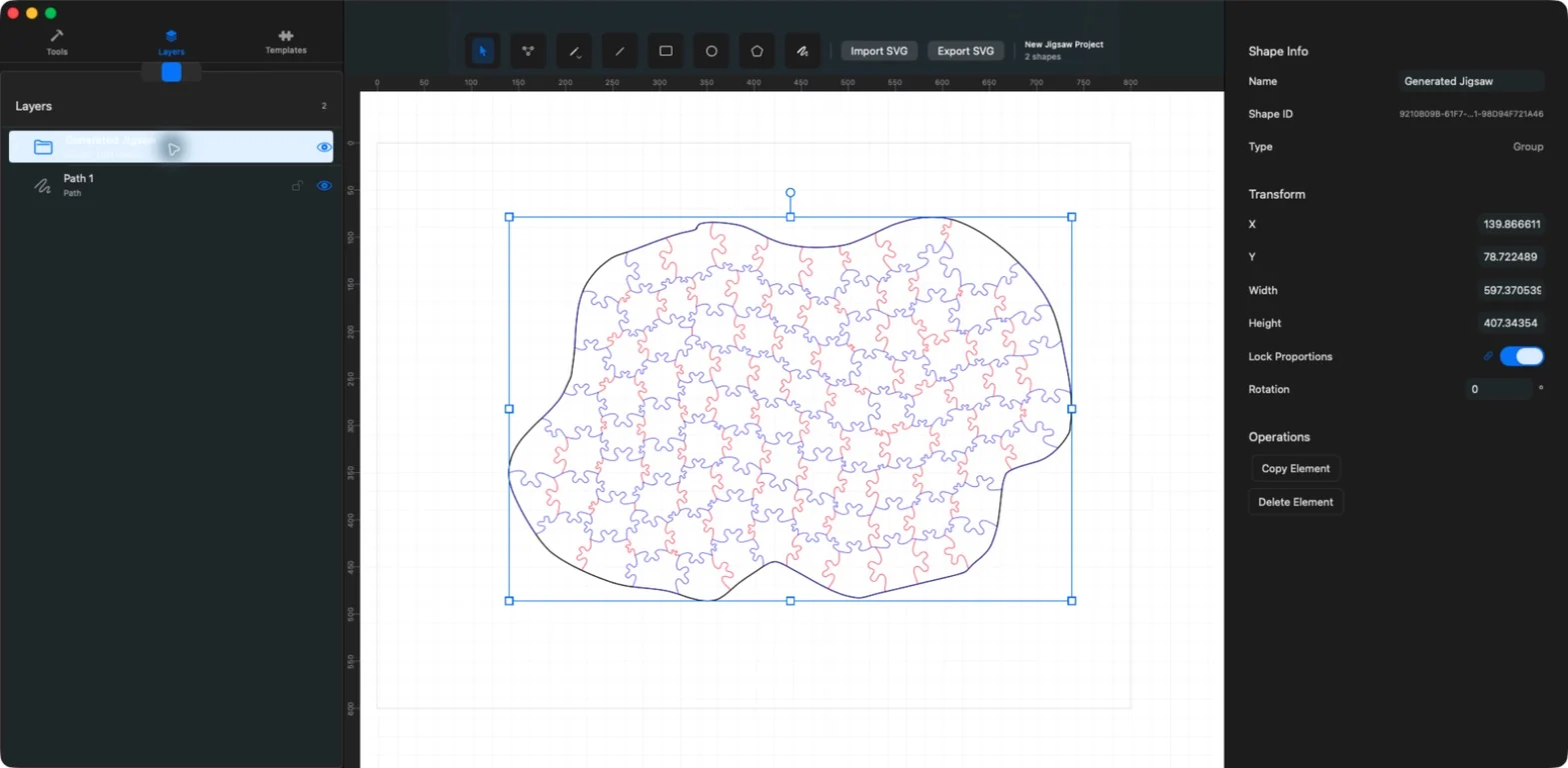
3. Inspect and edit the paths
Zoom into the boundary and internal connections. Use Layers, selection, point editing, grouping, scaling, and rotation to correct the vector document. Save the editable project before export.
- Look for unintended overlaps or duplicate paths
- Confirm the document scale
- Keep only the geometry needed by the next workflow
- Repeat generation with adjusted inputs when necessary
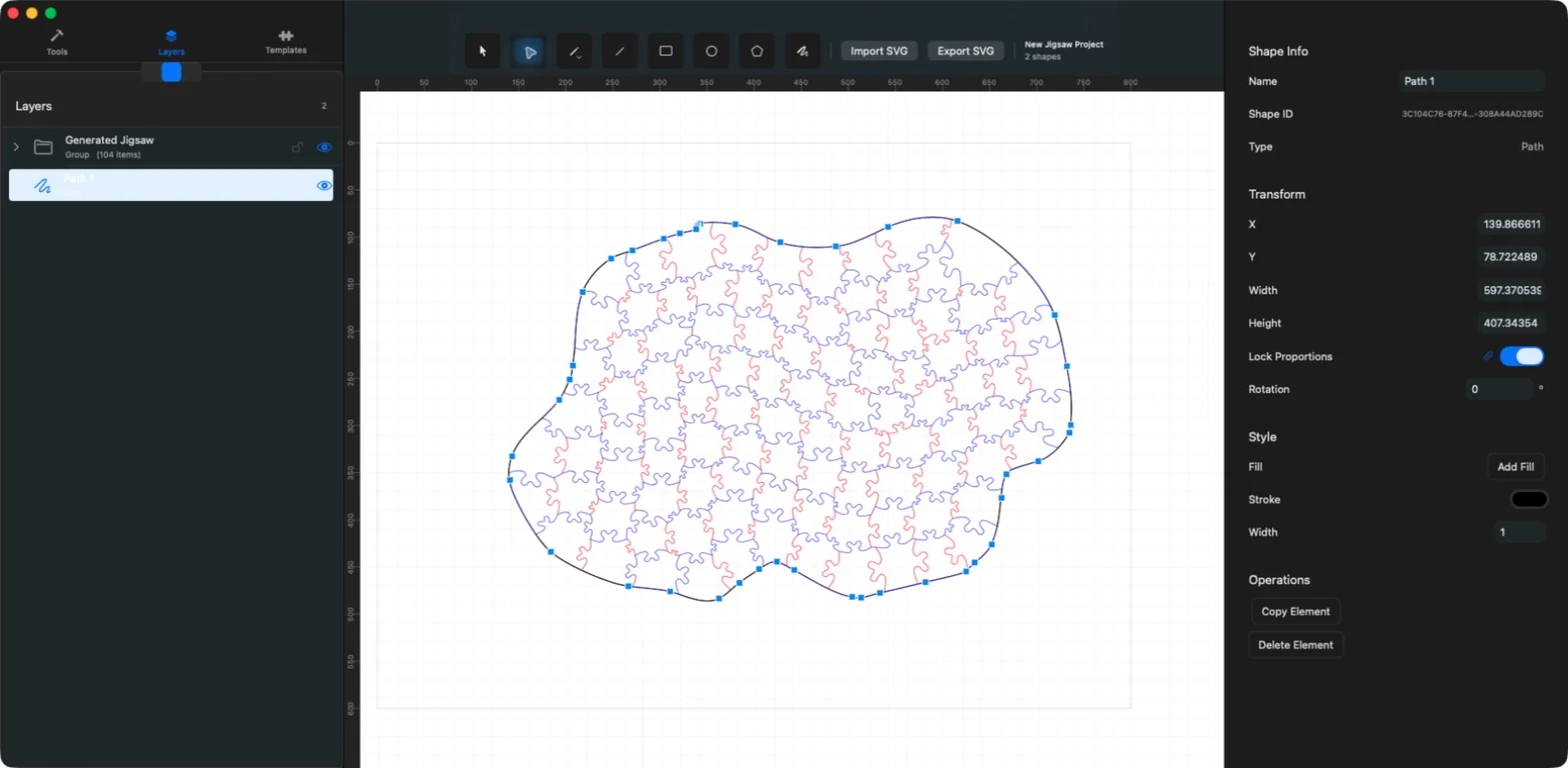
4. Export SVG and validate in cutting software
Export SVG, import it into the software used by your equipment, and assign the correct operations. Confirm units, stroke interpretation, kerf, material settings, speed, power, and safety procedures using the vendor's documentation. Run a small test first.
This guide does not certify the SVG for a particular cutter or material. Production validation remains your responsibility.
Frequently asked questions
Can I send the SVG directly to any cutter?
Do not assume that. Import it into your downstream software and validate format handling, scale, operations, and equipment settings first.
Should I keep the JigsawDesigner project after export?
Yes. The project preserves editable source geometry and assets for revisions.